 Keet Support
Convert Incompatible Videos 🎞️
When a video may not play on all devices, Keet offers to convert it to a compatible version before you send it.
Why does Keet say a video may not play on all devices?
Some videos are recorded with a codec (commonly H.265 / HEVC) that isn't supported on every device or operating system. If a peer's device can't decode that codec, the video simply won't play for them.
Keet can't fix this on the receiving end, so instead it offers to convert the video to a widely compatible format before you send it - as long as your own device can play the video.
Conversion happens on your device before sending. Peers who already support the original codec aren't affected either way. 🎞️
Convert a video before sending
When you attach a video Keet has detected as potentially incompatible, a banner appears above the preview.
One incompatible video
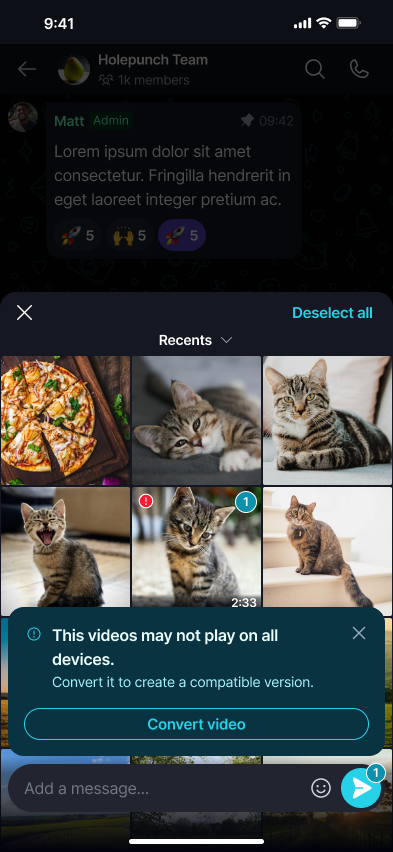
Attach the video - a banner reads 'This video may not play on all devices'. Select 'Convert video' to create a compatible version.
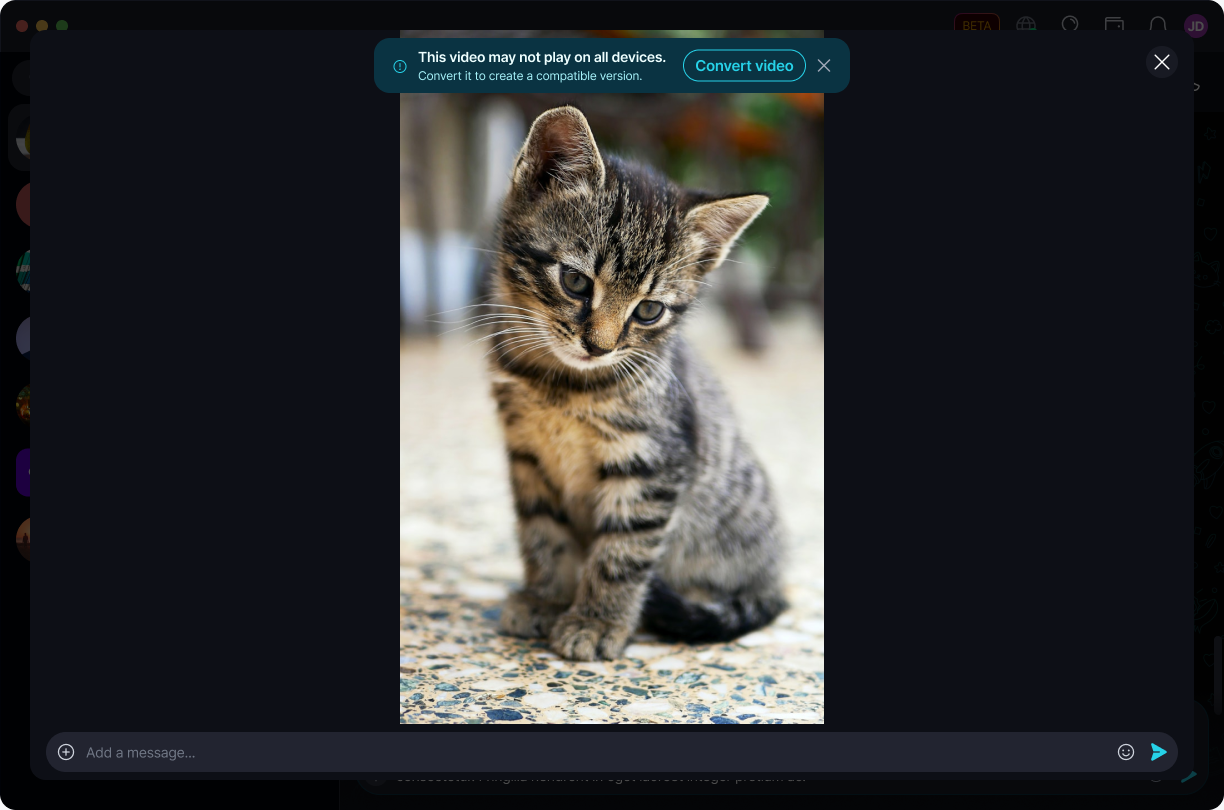
Attach the video - a banner reads 'This video may not play on all devices'. Tap 'Convert video' to create a compatible version.
Multiple incompatible videos
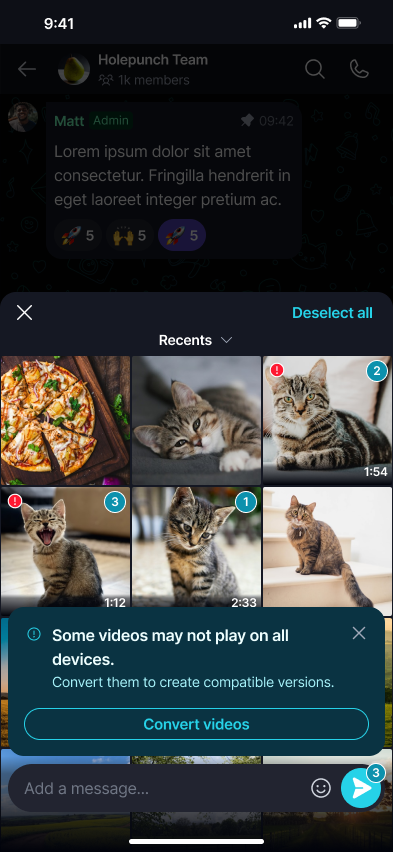
If you attach several videos at once, affected ones are marked with a warning badge in the thumbnail strip, and the banner covers all of them together.
'Some videos may not play on all devices' - select 'Convert videos' to convert all flagged videos at once.
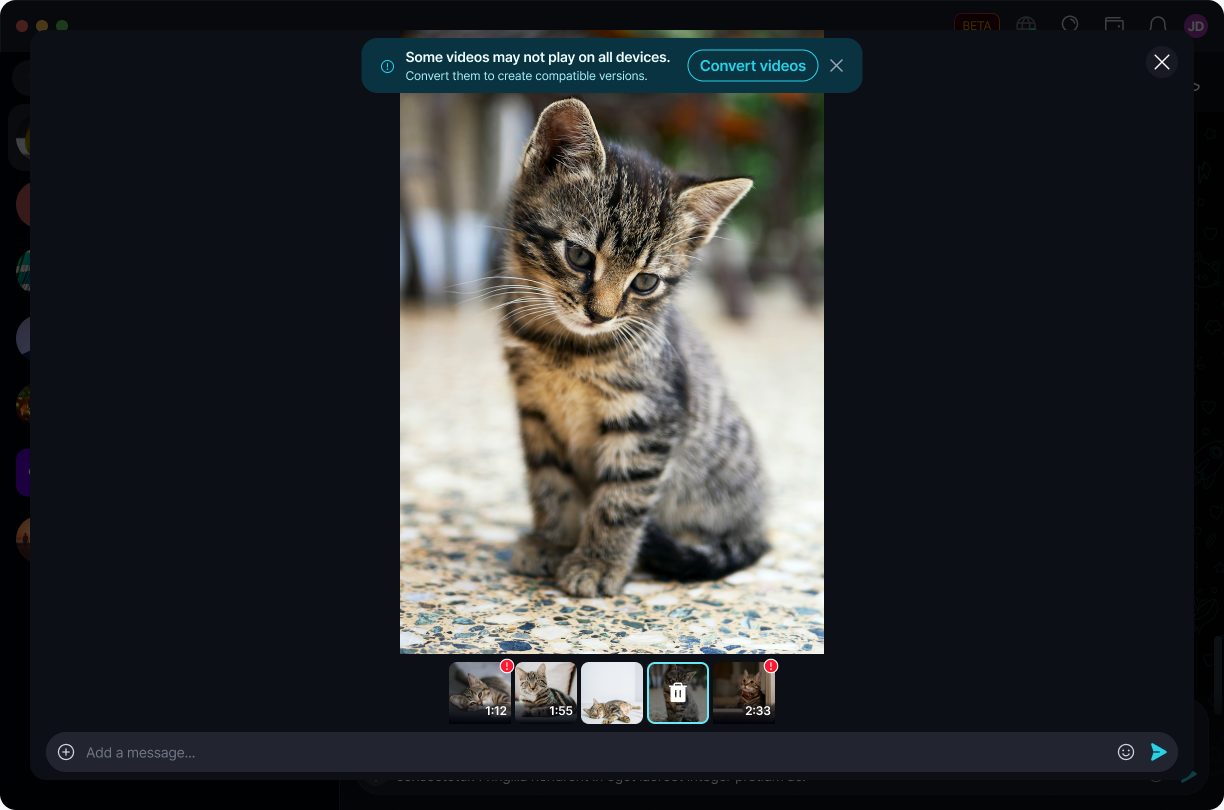
'Some videos may not play on all devices' - tap 'Convert videos' to convert all flagged videos at once.
Don't want to convert? Dismiss the banner [X] and the video sends unaltered - your peers who support the original codec will still be able to play it normally.
While the video is converting
Keet shows a progress bar while it creates the compatible version. Larger or longer videos take longer to convert. Select 'Cancel' to stop.
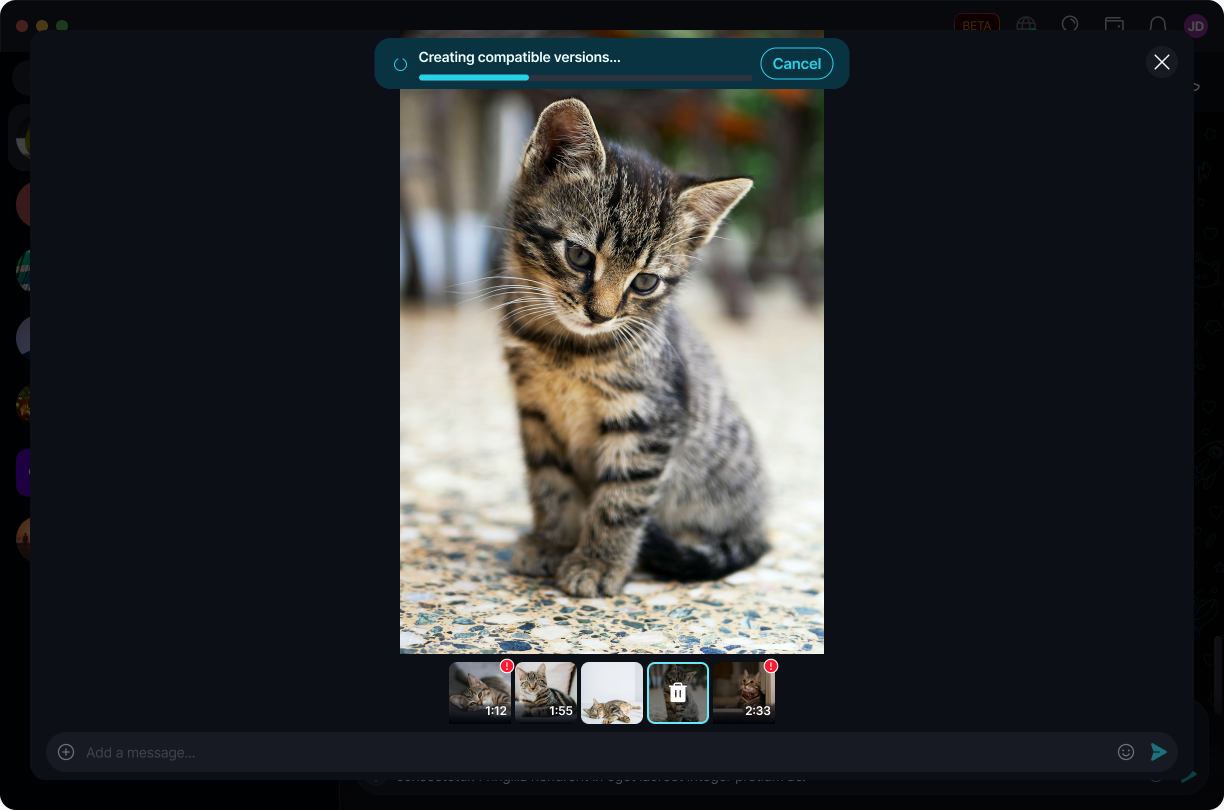
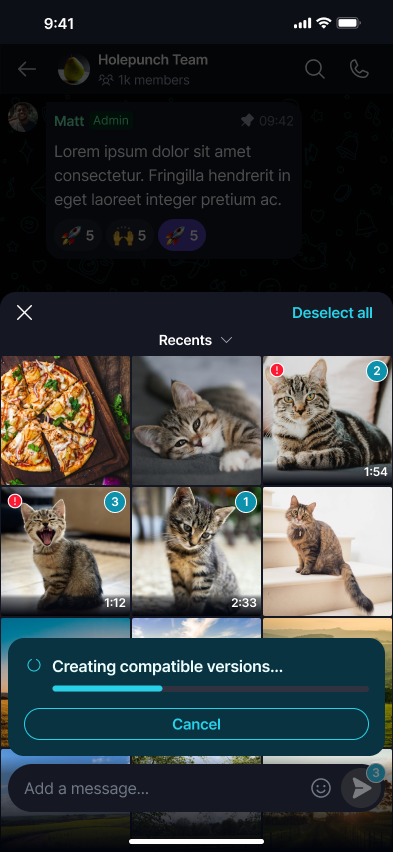
After conversion finishes
Once conversion succeeds, Keet confirms it and the compatible version is what gets sent.
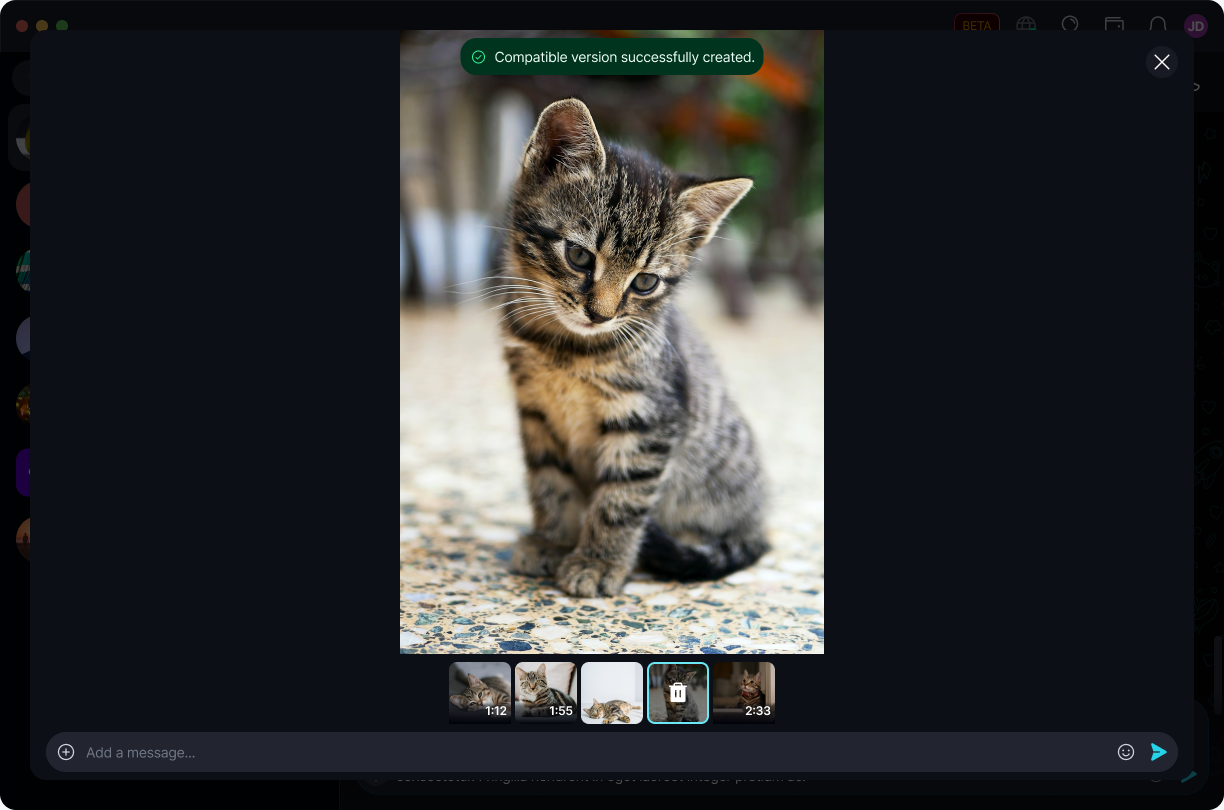
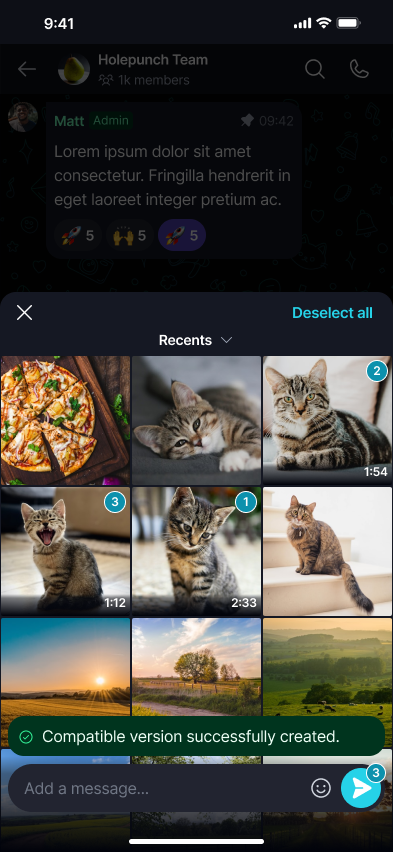
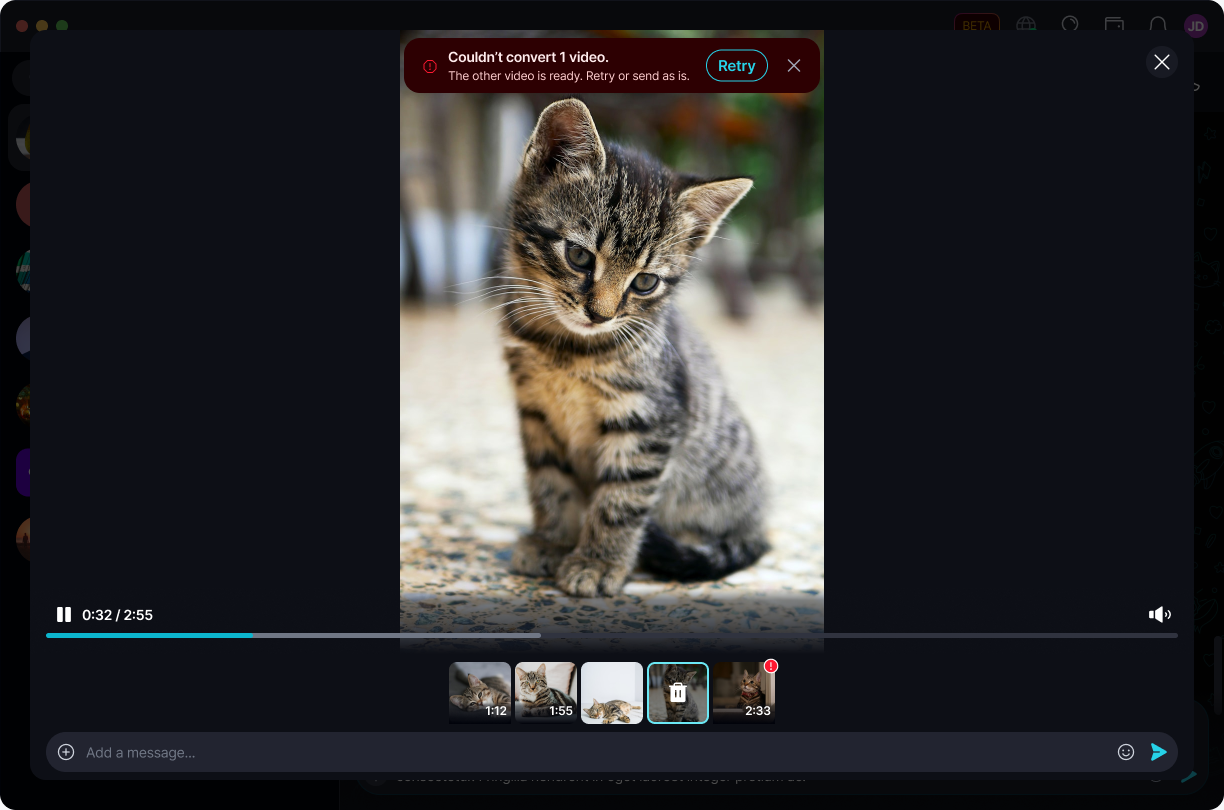
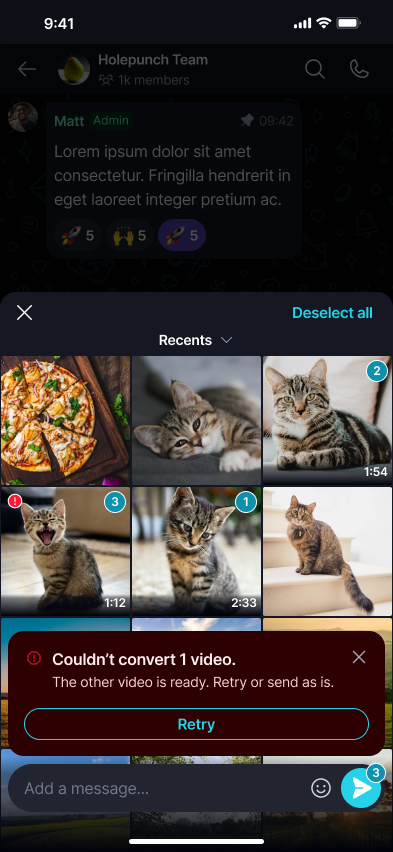
If conversion fails for one of several videos, Keet lets you know which ones are ready and gives you the choice to retry the failed one or send it as is.
'Couldn't convert 1 video. The other video is ready.' Select 'Retry', or dismiss to send it unconverted.
'Couldn't convert 1 video. The other video is ready.' Tap 'Retry', or dismiss to send it unconverted.
When a video is too large to convert
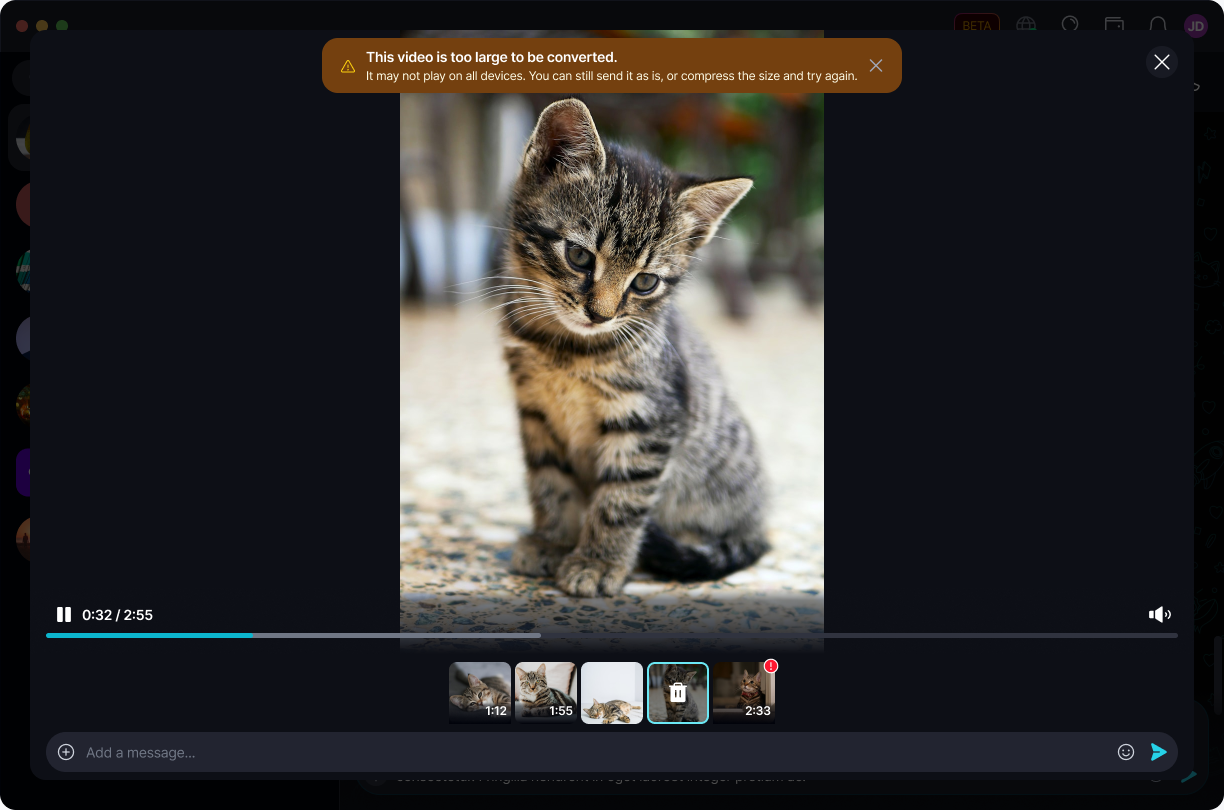
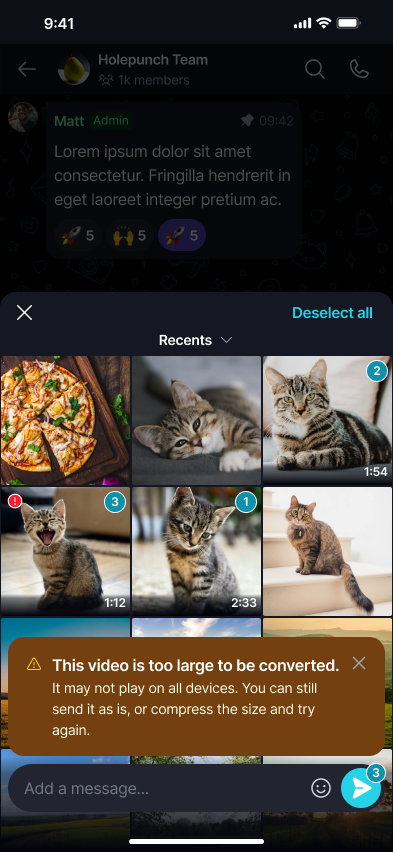
Very large videos can take a long time to convert, so Keet skips conversion for them and lets you choose how to proceed.
'This video is too large to be converted.' Send it as is, or compress it outside Keet and try again.
'This video is too large to be converted.' Send it as is, or compress it outside Keet and try again.
Sending a video without converting it doesn't break anything - it's simply not guaranteed to play on every peer's device. ⚠️